
Turn document action items into tasks, schedule them in planning, and return to the source material from task details.
Choose the planning scope
Open planning in the sidebar and check whether the scope is personal or the current workspace. Personal items are separate from workspace items. Keep team tasks, document references, and member assignments in the appropriate workspace.
Events represent calendar items; marking an event as requiring completion makes it a task. Dates and start/end times describe its schedule, while a due date describes the delivery deadline. A Markdown - [ ] checklist remains document text and does not automatically become a separate task.
Create a Todo from a document
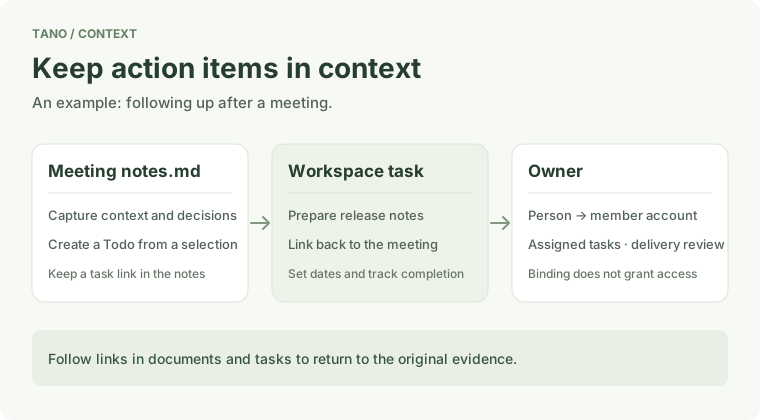
Select an action item and use the create-Todo action, then confirm its name. The source document and selected text enter the task description. The original text stays in place with a task reference added; a date is optional.
If task creation succeeds but the source reference cannot be saved, check the prompt and retry the reference write. Retrying reuses the created task; you can also append the reference to the document.
Edit and track progress
Select an item’s name in the sidebar or calendar to edit its description, completion, schedule, and due date. Workspace task descriptions can search and insert document references. Outgoing links and backlinks in document and task details lead back to relevant context.
Resolve unsaved changes before closing or navigating away. On conflict, keep your draft and compare or save a separate copy. See Calendar and Todo sync to connect external services.
Team assignment and delivery review
Online workspace tasks can be assigned to members. A person record must be bound to a member account to appear in that account’s assigned tasks and generate its notifications. A person relation does not grant workspace access. Reading a notification does not complete the task.
For delivery review, the executor selects a saved result document and a reviewer with edit access, then submits it. The reviewer can request changes or approve and complete the original task. If the result or requirements change, submit again; an outdated submission cannot be approved. See Online workspaces for assignment controls.
Recurring tasks
Set a daily, weekly, or monthly rule in workspace task details, with an interval and optional end date. Complete and save the current task, preview the next occurrence, then confirm its date, owner, and relations before creating it.
The next instance retains references and owners while clearing completion, delivery review, and external sync identity. Confirming the same occurrence again does not create a duplicate. Edit the rule on the source task. There is no background timer or automatic backfill of past occurrences.
The assistant can also query tasks, propose date changes, and prepare progress reports. Every proposed change still needs your confirmation.